Most fertility prescription holdups show up at the worst time: a formula that won’t run the week before spreading, or a file the monitor won’t read while the applicator waits. These seven tips are for agronomists writing variable-rate fertility prescriptions in QA Advisor by FarmQA (the new name for the FarmQA agronomy platform you use today), and they cover the setup steps behind the most common holdups.
The rates themselves come from you, your lab, or the recommendations you follow. QA Advisor by FarmQA applies your rec logic; it doesn’t supply it.
Key Takeaways
- Check your add-on. Basic Prescriptions covers management zones and writing and exporting prescriptions. Advanced Prescriptions adds formulas.
- Work in order. Field data first, then rates, then export. A prescription that looks wrong usually has its cause upstream.
- Start from an example formula. Copy the expression, match the variable names, then change the values to your recommendations.
- Check soil data before you run a formula. When a formula won’t run, the soil data under it is usually the problem.
- Know whether your rate is nutrient or product. 60 lb of P₂O₅ and 60 lb of MAP are not the same load.
- Read the PDF totals the way your applicator does. Avg rate covers every acre. Avg on-rate covers only the acres that get product.
- Set the export for the monitor. Numeric rates, attribute names of 10 characters or fewer, and the zipped folder loaded as it downloads.
1. Check which prescription tools you have: Basic or Advanced Prescriptions
If you can’t find formulas in QA Advisor by FarmQA, the cause is usually your add-on, not a hidden button. Basic Prescriptions covers management zones and writing and exporting prescriptions. Advanced Prescriptions adds formulas, including running them on several fields at once.
If Formulas doesn’t appear under Fields, check which add-on your account has before you go looking. You can try either add-on before you buy it.
HELP ARTICLE: Compare Basic and Advanced Prescriptions
2. Build prescriptions in order: field data, then rates, then export
A fertility prescription is built on a map of the field: a management zone, or for grid-sampled fields, the grid soil results themselves. So a prescription that looks wrong usually has its cause upstream, in the zones or the soil data behind them. Fixing the rates won’t fix that.
Build the zones in Zone Designer, or start from your grid results, then set the rates, then export a shapefile for the monitor and a PDF for your grower or applicator. When something looks off, start at the beginning and work forward.
A prescription doesn’t update when its management zone changes. A prescription is saved as its own file when you write it. To use the new zone, write the prescription again.
HELP ARTICLE: Prescriptions overview
3. Start from an example formula before you build your own
AVAILABLE WITH: Advanced Prescriptions
REQUIRES: Enterprise Administrator or Agronomist role
Building a prescription formula from a blank screen is where most setups go sideways. QA Advisor by FarmQA includes example formulas for phosphorus, potassium, lime, sugar beet nitrogen, and the Tri-State recommendations.
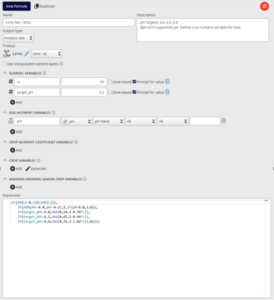
The Example formulas PDF has each expression as text. Copy it into Expression, add the variables with the same names the example uses, then change the values to match the recommendations you follow. Within the phosphorus and potassium examples, every crop uses the same expression, so only the values change.
Formula variable names must match the expression exactly. The expression finds variables by name. Capitalization doesn’t matter, but spelling and underscores do, and the formula won’t save until every name in the expression matches a variable you added. Names start with a letter or underscore and use only letters, numbers, and underscores.
If no example fits your rec logic, Support can help you set up your own formula. Which rates to use is your call.
HELP ARTICLE: Manage formulas
4. Check your soil data before you run a formula
AVAILABLE WITH: Advanced Prescriptions
When a prescription formula won’t run in QA Advisor by FarmQA, or a batch won’t process, the formula is rarely the problem. The soil data underneath it usually is. Run through this list first:
- The soil results are in the growing season you choose when you run the formula. The formula only reads results from that season, so import new results into the season they belong to.
- Each sample is assigned to the zone it was pulled from. To assign zones from each sample’s location, select the samples and use Assign management zone.
- The field doesn’t mix grid samples with composite or zone samples in that season. A formula can’t run on both at once.
- No sample has duplicate results.
- In Process formula, Use layer is set the way you mean it: on to run the formula on a layer such as your management zones, off to run it on the soil results for the season you pick.
What happens when a zone has no soil test value
If a zone has no value for a soil nutrient the formula uses, the formula stops for that field and names the zone and the variable that’s missing. If a sample was pulled from that zone, check that it’s assigned to the zone.
If you left the zone unsampled on purpose, the formula still needs a value to run: give that soil nutrient variable a default value in the formula. The default goes in the number box at the end of the variable’s row under Soil nutrient variables in the formula editor. With a default, the formula uses it for zones without data and tells you which zones it applied to.
Set the default to a soil test value, not a rate
Set the default to the soil test value you want those zones treated as. The default stands in for the missing soil test value, not the rate, and the formula calculates a rate from it the same way it would from a lab result.
A default of 0 reads as a very low soil test and can call for a high rate in zones you meant to skip. If you want little or no product there, use a value at the high end of your soil test ranges, where your recommendations call for the least product.
The default is saved with the formula, so it fills that nutrient for any zone missing it in every field you run the formula on. After each run, check the zones it lists.
One problem field stops a multi-field batch
This matters most when you run a formula on several fields. QA Advisor by FarmQA checks every field before it runs, and one field with a problem stops the whole batch. The problem field is flagged in the list. Fix its data, or remove it from the list and run the rest.
HELP ARTICLES: Run a formula on a field and Manage formulas
5. Know whether your rate is a nutrient rate or a product rate
A rate of 60 means different things as pounds of P₂O₅ and pounds of MAP, and your applicator loads product. Settle which one you mean before the prescription leaves your hands.
For a formula, the Output type decides it:
- Nutrient rate calculates the nutrient, and you pick which product carries it each time you run the formula. One formula covers every N, P, or K product you sell.
- Product rate calculates one specific product and ties the formula to it.
For a prescription you write zone by zone, put the product and unit in the Description so nobody has to guess.
HELP ARTICLES: Manage formulas, Write a prescription from a management zone, and Export prescriptions
6. Read the prescription PDF totals the way your applicator does
Product totals on a prescription PDF that don’t match your field acres usually aren’t wrong. They’re counting a different set of acres.
| On the PDF | What it means |
| Avg rate | Product spread over every acre of the fields that receive it, including zones at zero |
| Avg on-rate | Product over only the acres that actually get it. This is the rate the applicator runs. |
| Total acres | Each field counted once, even when two products cover it |
Example: A product at 200 lb/ac on 20 acres of a 40-acre field shows an Avg rate of 100 lb/ac and an Avg on-rate of 200 lb/ac. Both are right.
To see the same split for each field, set Data to Summary or Details and summary when you export the PDF. The summary under each field’s map shows its on-rate and zero-rate acres.
On the PDF, Convert totals to larger units switches a product’s totals to tons or gallons once any value reaches 1 ton or 1 gallon. Turn it off to keep pounds or fluid ounces.
HELP ARTICLE: Export prescriptions
7. Get the prescription file onto the monitor the first time
A prescription that won’t load costs the most when the applicator is already at the field. Most load failures come down to a few details you can set in QA Advisor by FarmQA before you export:
- For prescriptions you write zone by zone: choose Number, not Text, for each rate. Monitors look for a numeric rate. Formula prescriptions are always numeric.
- Keep attribute names to 10 characters or fewer, starting with a letter and using only letters, numbers, and underscores. Shapefiles can’t hold longer names, so a name like 35-40-0-10 comes through shortened and changed.
- Load the zipped folder into the monitor as it downloads.
- If the file is too large for the monitor, export with Collect geometries It combines each zone’s pieces into one shape, which shrinks the file. A grid laid over the zones adds a lot of pieces.
- On John Deere: if the display says the shapefile is projected, or Operations Center says the file is empty, export again with Include .prj file Prescriptions you write zone by zone leave it out, but it can be checked when you export a formula’s zone map.
- In John Deere Operations Center: if a new prescription doesn’t show for a field, check the queue. Operations Center keeps the first prescription it imported as the default until you make another one active.
Send prescriptions straight to John Deere Operations Center or Raven
AVAILABLE WITH: Selected accounts. Email support@farmqa.com to turn on sending to John Deere or Raven.
If your fields are linked to John Deere Operations Center or Raven through the integration, you can skip the file. On the Export prescriptions page, choose your connected account under Send to OEM account and select Send. Prescriptions for fields that aren’t linked to that account are skipped.
HELP ARTICLES: Write a prescription from a management zone, Export prescriptions, and Prescription file won’t load on a monitor
Still stuck? If a formula still won’t run after the soil data checklist in tip 4, email support@farmqa.com with the field name and the formula you ran.