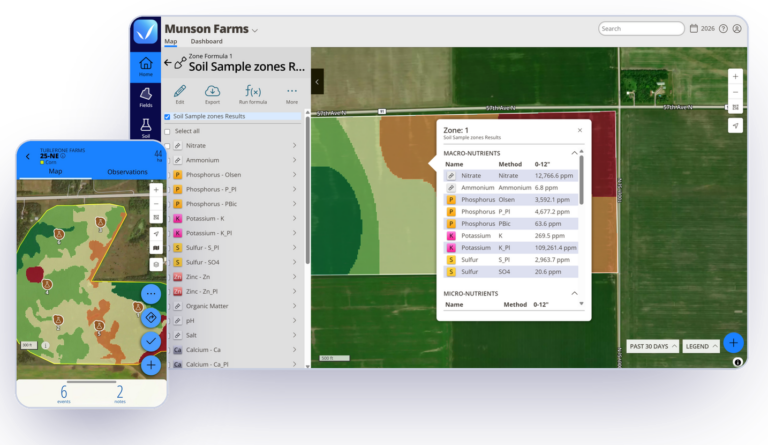
Most of the questions our team sees during sampling season trace back to small setup decisions that turn into bigger headaches once crews are in the field. If you’re an agronomist, crop advisor, retailer, or sampler getting ready for the season, these tips will help your first trip out go smoothly, and your samples reach the lab clean. Each tip links to a corresponding help article with the full steps.
Note: For a full walkthrough of what’s new, watch the webinar What’s New in Sampling and Lab Integrations. To avoid dropping a new workflow on anyone mid-season, these features are off by default as of October 1, 2026. To enable them on your account, contact FarmQA support.
1. Choose Your Sampling Type Based on the Bags Going to the Lab
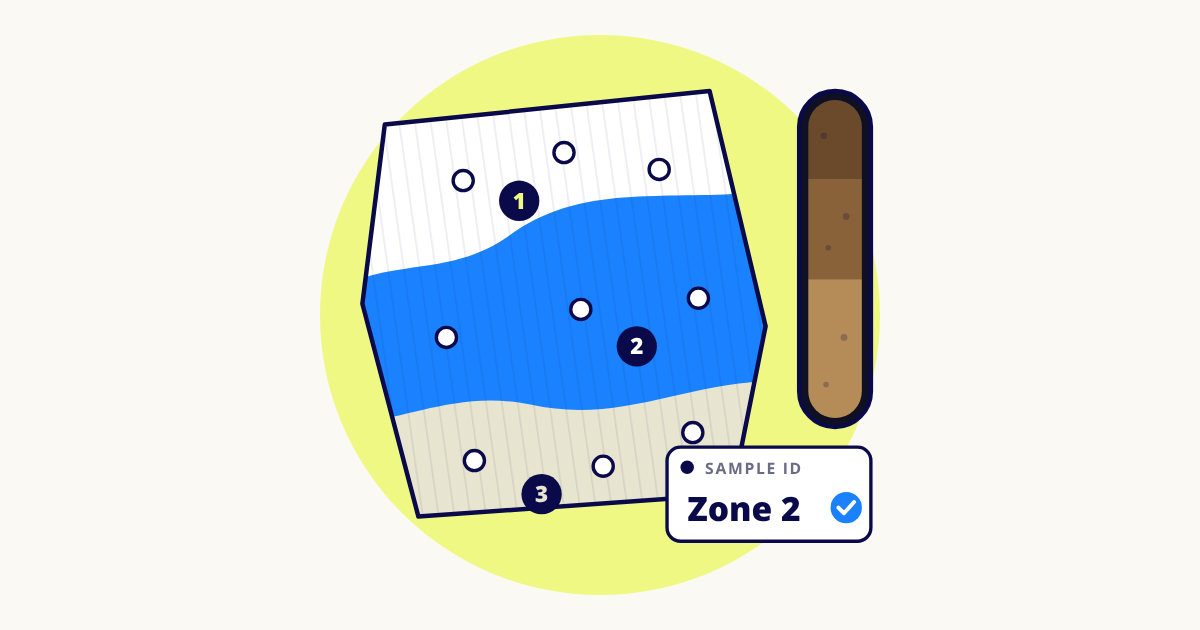
Grid, Zone, and Composite sampling are easy to mix up. Instead of counting collection points, count the sample bags you’ll send to the lab.
| SAMPLING TYPE | BAGS SENT TO THE LAB |
|---|---|
| Composite | One bag per field |
| Zone | One bag per zone |
| Grid | One bag per point |
Before You Create the Task
- You can’t change a task’s type or category after it’s created.
- Zone tasks require actual Map Zones. Zones uploaded as a standard layer won’t work for sampling.
HELP ARTICLES: How soil sampling types work and Create a composite or zone soil sampling task
2. Connect the Lab Before Anyone Goes to the Field
Lab setup problems usually don’t surface until someone tries to export lab files or submit samples, which is the worst time to find them. Before scheduling sampling work, add and verify the lab, attach it to the task, and select the correct analysis package.
Common Mistakes
Forgetting to attach the lab to the task. Everything looks fine until someone exports lab files and finds no lab is associated with the task.
Using a person’s email address. Use the lab’s sample submission inbox, not a specific person’s address. People change roles, take vacations, and move between organizations. A shared inbox stays put.
HELP ARTICLES: Add a soil lab to your account and Automatic lab submission and results import
3. Double-Check Sample IDs Before You Submit
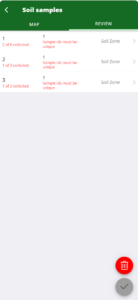
Lab files are built around Sample IDs, not collection points. That’s why FarmQA checks them before anything goes to the lab.
Submission is blocked if:
- A sampled group is missing a Sample ID.
- Two samples in the same task share a Sample ID.
A zone you couldn’t reach only generates a warning. Missing or duplicate Sample IDs stop submission entirely, so if you check one thing before submitting, make it the Sample IDs.
HELP ARTICLE: Collect composite and zone soil samples
4. Sampling as a Team? Leave the Task Unassigned
When several people are collecting in the same field, an unassigned task lets everyone work from it instead of tying it to one person. Have each sampler set their Work page filter to All Tasks, and sync periodically throughout the day.
Collected samples don’t update live across devices. Settle who’s covering which part of the field before heading out so nobody duplicates effort.
HELP ARTICLE: Collect soil samples using a task
5. Finish Tasks From the Sampling Page, and Collect at Least One Point
AVAILABLE WITH: The new soil sampling workflow.
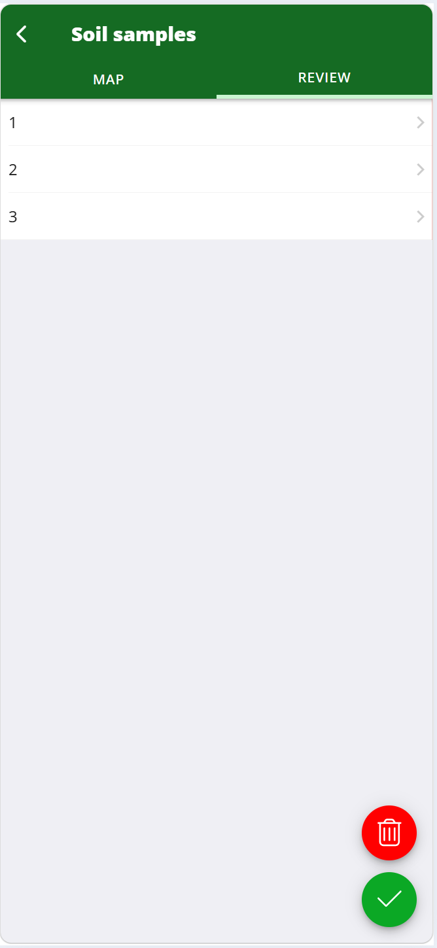
If you’ve sampled with FarmQA before, this is the biggest change this season. Sampling tasks are now finished by submitting from the Review tab on the sampling page, not by completing them from the task page.
A task also needs at least one collected point before it can be completed. Teams using preset points and pre-labeled bags often completed tasks without marking points. That no longer works.
| ACTION | RESULT |
|---|---|
| On the sampling page, select ✓ to open the Review tab, then select OK. |
|
Why It Changed
- Your progress saves as you go.
- Mistakes get caught before they reach the lab.
- You decide when a task is final.
- Zone and composite sampling follow the same workflow.
Can’t Reach Every Point?
Collect what you can and submit. FarmQA warns you about points that weren’t sampled. Those points don’t become sample records and don’t go to the lab. To collect them later, create a new task.
Common Mistake
Completing from the task page. If a task has preset points, the task page only completes it once every point is collected. To finish with points skipped, submit from the sampling page.
HELP ARTICLES: Collect soil samples and Collect composite and zone soil samples
6. A Sampler Can’t See Their Tasks? Check Sync and Licenses First
Before opening a support ticket, run through these three checks. They resolve a large share of “I can’t see my tasks” reports.
- Sync the device. Run Sync Now from Settings, wait for it to finish, and restart the device if tasks still don’t appear.
- Confirm the Workflow license. The user needs a Workflow license with workflow enabled. Without it, assigned work may not appear as expected.
- Check available Task licenses. If every Task license is already assigned, newly added users may not see tasks on mobile, even if they’re expected to sample.
HELP ARTICLES: Syncing your mobile app, Setting up a user with a Workflow license, and User licenses and roles
7. Color Zones by Sample ID Before Crews Head Out
Zones that look clear on a desktop monitor can be hard to tell apart on a phone in bright sunlight, especially when every zone is the same color with faint boundary lines. Style the zone layer by Sample ID so each zone gets its own color, and do it before crews leave the shop.
HELP ARTICLE: Editing and styling Map Layers
8. Create a Dedicated Sampling Season
Mixing sampling into your scouting season makes progress hard to follow. A separate season, such as “2026 Sampling,” gives you a clean progress view, easier task tracking, and a clear line between sampling and scouting.
Some teams set every field’s crop to Not Sampled and then use task status to track progress across the season. On mobile, samplers need to select the sampling season to color fields by task.
Common Mistake
Deleting fields to declutter. Removing fields to simplify what samplers see can also remove valuable history. Manage visibility through season setup and crop assignments instead.
HELP ARTICLES: Manage growing seasons and Track which fields still need sampling
9. Clean Up Lab Results Before Importing
If your lab isn’t set up for automatic submission, you’ll import results from a CSV. Imports go smoothly when company, grower, and field each have their own column.
Do this:
| Company | Grower | Field |
|---|---|---|
| Acme Ag | Smith Farms | North 80 |
Not this:
| Combined |
|---|
| Acme Ag – Smith Farms – North 80 |
HELP ARTICLES: Format your soil test CSV file and Upload soil test result using an import profile
10. Filter Before You Delete Markers
Marker cleanup goes wrong when the selection is broader than intended. We’ve seen people set out to delete a handful of points and remove all of their soil markers instead. Filter to the specific field and marker type, and review the selection before you delete.
HELP ARTICLE: Manage markers
Quick Checklist to Avoid Soil Sampling Mistakes
Most common sampling issues clear up with these checks:
☐ Run Sync Now and wait for sync to finish.
☐ Confirm the sampling season is selected on mobile.
☐ Confirm a lab is attached and an analysis package is selected.
☐ Check that Sample IDs are unique.
☐ Collect at least one point and submit from the Review tab.
Still stuck, or ready to turn on the new sampling workflow? Contact FarmQA support.